← The window · Contents · Summaries →
Reading
Click an article, or press ↵. Depending on the window and the layout chosen in Configuration › Basic › Navigation › Panes and shelf › Layout, it opens beside the list, above or below it, or takes the whole window. On a phone it always takes the whole screen.
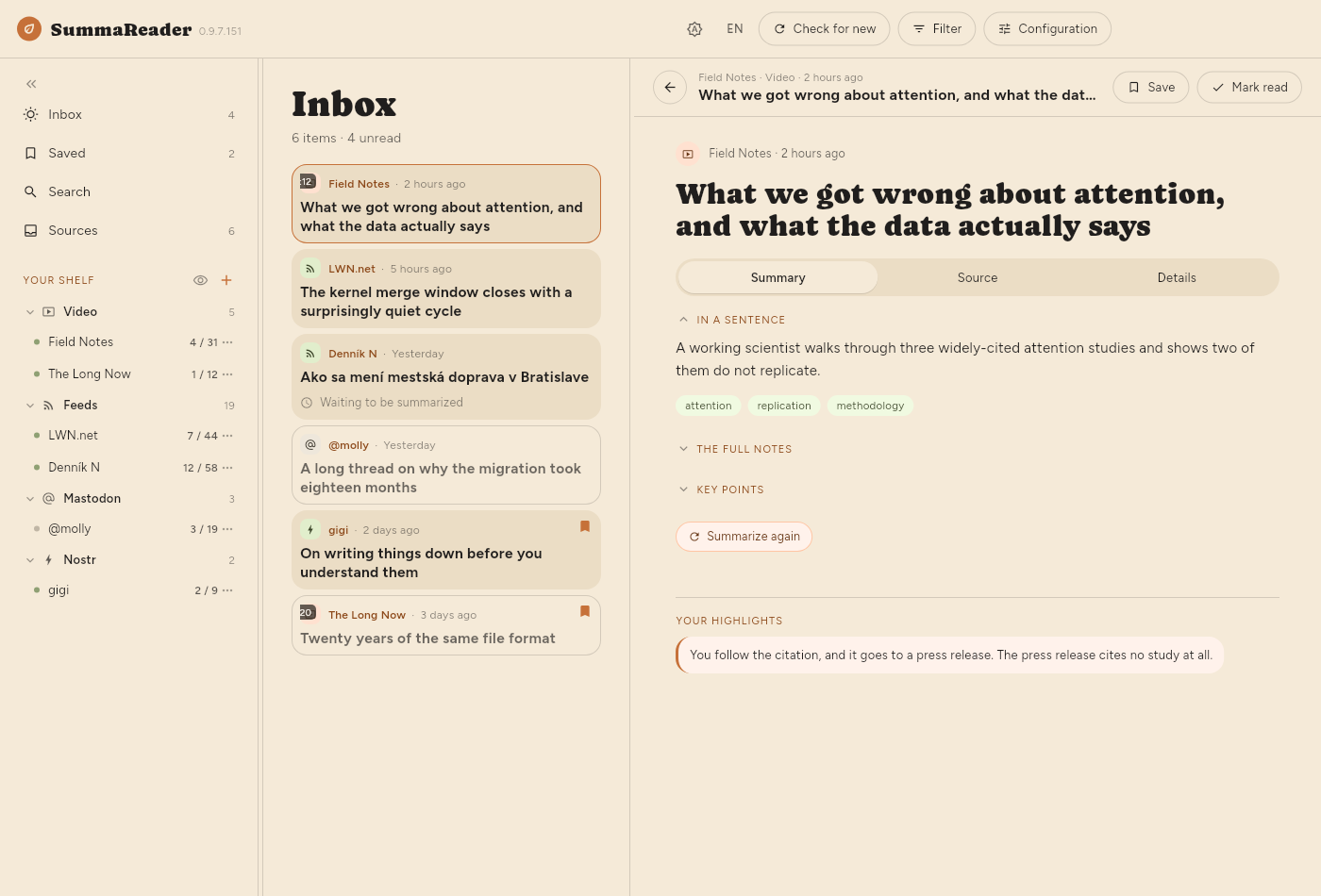
The three tabs
- Summary — what the model wrote, in three foldable sections: In short (three sentences), Key points (one per topic, each with a title and a couple of sentences explaining it) and Glossary (the terms it thought worth defining). Points from a video carry timestamps that seek.
Shift+1–3fold them. - Source — the article itself, or the transcript.
- Details — where it came from, when, which model summarized it and what that cost.
1–3 jump between them.
Summaries written before this app stopped asking for one also carry The full notes, a longer prose version. Nothing produces one any more: what it was for went into the overview and into the explanations under each topic.
The toolbar
- Save — files it into the list the shelf shows filled in, which is Saved until you choose another. The ▾ beside it, a right-click or a press and hold picks a different list or makes one.
- Mark read — on articles from a feed. With the unread filter on, this moves you to the next one; the last one closes the reader.
- Delete — only on articles you have kept. It asks twice, and the second press says Delete everywhere? because it removes the article from every device you sync with and stops any feed bringing it back.
Moving between articles
Drag the article sideways, or use j / k, or Space at the end of it. Dragging right at the first one goes back to the list. On a phone, or in a narrow window, a drag from the left edge goes back to the list and a drag from the right edge opens the web page. A pull past the end or the top of the article does nothing until you select an action for it.
A pull acts when you let go. When the pull is far enough, a short hint names the action. If you move back before you let go, nothing occurs. The next article then slides up from below, and the previous article slides down from above. j and k move the article in the same way. On a touch screen, a pull to the next or previous article moves that article in with your finger as you pull. The hint shows over it when the pull is far enough, and the article moves back if you let go too soon.
On the last article in the list, a drag sideways or a pull to the next article marks the article read and goes back to the list. A message tells you it was the last article, and during a pull the hint says so. On the last article of a page, both open the first article of the next page.
To set how far you must pull before letting go does the action, select Short, Medium or Long under Configuration › Basic › Navigation › Gestures › Pull distance. They are a third, half and three quarters of the article's height. Long is the default. A fast flick does the action at any distance.
You can give each of these six gestures a different action, for example Mark read / unread or Mark read and open the next. Select them under Configuration › Basic › Navigation › Gestures › Article gestures. The swipe on a list entry is under Configuration › Basic › Navigation › Gestures.
On a phone or a tablet, pull the list down to reload it or to check your sources. The app asks which: Reload the list or Check for new articles. To do one of them without the question, select it under Configuration › Basic › Navigation › Gestures › Pull down the list.
Scrolling
A click with the mouse gives the keys to the pane you click. A click on an article in the list opens it and leaves the keys in the list, so ↓ and ↑ go on walking from that article. To scroll the article with the keys, click in the article. A tap with a finger does not change which pane has the keys.
With the article focused, ↓ and ↑ move it by a few lines of its text, and so does one notch of the mouse wheel over it. How many lines is Configuration › Basic › Navigation › Scrolling › Scroll by: 1, 2, 3, 5 or 8, and 3 to begin with. The step follows the text size and the line spacing, so it stays the same number of lines at any setting. A touchpad keeps its own fine movement.
Page Down and Page Up move nine tenths of a screen, so the last lines you read stay at the top of the next screen. Home and End go to the start and the end. These four stop at the ends of the article and go no further.
Space is the key that goes on. It moves a page down, and when the article is already at its end it opens the next article, sliding in from below as j does. Shift+Space moves a page up, and from the start of the article it opens the previous one. An article that fits the window turns on the first Space. Holding the key does not turn more than one article.
Tab and Shift+Tab move between the shelf, the list and the article, and so do → and ←. They stop at the first and the last pane instead of going round, and do nothing when the window shows one pane. Since this version ← and → no longer step through the list or open the previous and next article, and they no longer fold or unfold a group in the shelf: ↵ folds a group there, and ⇧↵ filters to it. A drag sideways still turns the article.
These moves glide to the new place instead of jumping. Configuration › Basic › Navigation › Scrolling › Smooth scrolling turns that off. It is also off when your system is set to reduce motion.
A new article slides into place: from the side on a phone, and from above or below when you walk the list. To make it appear at once, turn off Configuration › Basic › Navigation › Scrolling › Slide articles in.
When there is no text
Not every article arrives with its words. The reader says which of these it is:
| It says | What happened |
|---|---|
| This video has no captions | There is no transcript to read |
| YouTube asked the app to slow down | YouTube refused the captions for now. On Linux, the app first tries to get them from the video's page in its hidden page renderer, from its player or from its Show transcript panel |
| The page arrived, but there was no article text in it | The page builds its text in the browser |
| The site served a bot check | A "prove you are human" page |
| Behind a subscription wall | What arrived was the offer |
| The page is gone | Taken down or moved |
| Not on this device | Another device has it, or nobody has fetched it |
Later checks try the slow-down again by themselves, a few times. Of the others, only the last is worth retrying, and Fetch the text does that.
When the checks stop trying, the bell shows "N articles from <source> could not be read". Fetch the text on that row tries all of them again in one run, and Stop in the status bar ends it.