← Reading · Contents · Finding things →
Summaries
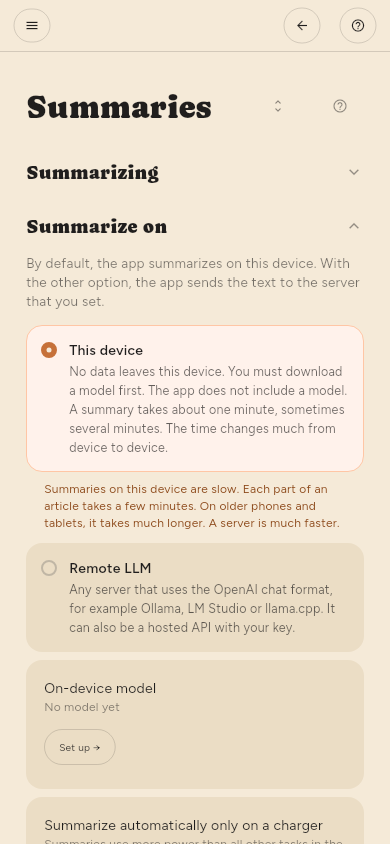
Where summarizing happens
Configuration › Basic › Summaries › Summarize on.
- This device — a model you download. Nothing leaves the machine. It is slower and costs battery: a few minutes for each part of an article, and much longer on older phones and tablets.
- Remote LLM — your own server, or a cloud API. Faster, costs money, and is the only time an article's text goes anywhere.
Each has its own page under Advanced: On-device model for this device, LLM server for a server. Both pages are always there; the one not in use says so at its top.
Choosing a model
Configuration › Advanced › On-device model › Find a model. Search, open a result's Variants to see the files inside it — they differ in size, and size is what decides whether one fits — and download the one you want.
Configuration › Advanced › LLM server › LLM server › Model. Fetch models lists everything the server offers, with no word on which of them can summarize. Under the address, a server that has a tested pick (today only Ollama Cloud, gemma4:31b) shows it under Worked when tested, with the day it was tried. That is a statement about that day, not a recommendation, and the service may have changed since. The app also remembers, on this device only (it does not sync), what happened with each model on each server: worked here after a finished summary (the Test button alone does not set it), thinks first for a model that reasons before it answers, and answered 400 when the server said the model cannot be used for chat, with the reason it gave. Models that worked are listed first, and a model that answered 400 is listed last and greyed. No model is hidden, and a greyed one can still be chosen.
A Gemma 4 E2B or E4B model in a GGUF file brings a small helper file after it, about 60 MB, which guesses the next words for the model to check. With it, llama.cpp writes summaries faster; the summaries can differ a little in wording from what the model writes without it. It is downloaded at the end of the model's download and kept beside the model, and it is deleted with the last model of its size. A model downloaded before this version gets it on its own when the app starts on a connection that is not metered; until then the model runs without it.
Configuration › Advanced › On-device model › This device shows the processor, the GPU, how much memory the device and its GPU have and use, and how much SummaReader holds, read again every three seconds; Copy puts it on the clipboard. Which model and context window fit depends on these numbers.
Downloaded models are listed in Configuration › Advanced › On-device model › Models on this device. Start loads one and makes it the model that answers — starting it is how it is chosen. Only one runs at a time, so starting another asks first: the model in memory has to go before the next arrives. The choice is remembered, and Load it when the app starts brings it back on its own. Delete takes the files and the row together. Each downloaded model's row also says about how much memory it needs with the context window and section size set below, and changes as you change them. Once a model has run, its row also says what it really used: for a GGUF model, which is loaded only while it summarizes, what the last summary took; for a model that stays loaded, what it holds now. On a phone, a GGUF model that needs more than half of the phone's memory, even at the smallest context window, shows Too big for this device in its row, and the app does not load it: a summary with it fails, and the trace names the model, what it needs and what the phone allows a model. Gemma 4 E2B and E4B, in both their GGUF and their LiteRT-LM files, keep a large table in the file that is read only a little at a time, so most of it is not counted. A LiteRT-LM model is counted at more than its file size besides, because that engine unpacks its weights into memory as it loads them. A model downloaded from Hugging Face has a Hugging Face page button, which opens its page there: its description, its licence and who made it. When some models need another engine, the list shows only the models the active engine runs, with a line under it that says how many more there are; All above the list shows every model, and the app remembers your choice.
Configuration › Advanced › On-device model › Models on this device › Context window is how much text the model holds at once, the article and the reply together. Beside it is the most the chosen model can use on this device: the smaller of the window the model was trained for and what the memory left after the model holds. For a GGUF model on a computer whose GPU has memory of its own, and with Configuration › Advanced › On-device model › Processor not set to the processor, that is the GPU's free memory, read again each time the window is worked out; elsewhere it is the device's memory. The same figure decides whether Find a model marks a file as too big. A larger number than that gives the model its max. A desktop with plenty of memory can use a large window; a phone usually cannot. A change takes effect the next time the model is loaded.
Configuration › Advanced › On-device model › Models on this device › Section size is the most text of an article one call to the model reads; a longer article is read in sections and the summaries of the sections are merged. It is 3,000 tokens until you change it. A larger section means fewer calls, and most articles then get one summary from one call, but a small model can write garbled or repeating text from a long section. The most it can be is what the context window leaves after the room for the reply, shown beside it. The merge at the end always uses the whole window. A change takes effect with the next summary.
With Configuration › Advanced › Development › Experiments › Experimental engines on, Configuration › Advanced › On-device model › Engine sets the engine that runs the model. If a model runs when you pick a different engine, the app asks first: Stop and change stops the model, then changes the engine. The model does not start again when you switch back. Turning Experimental engines off goes back to LiteRT-LM, and asks the same way. Apple Foundation Models is part of the system and needs no download. With it chosen, the downloaded models show Delete only, and the search is not there.
Configuration › Advanced › On-device model › Processor sets where the model runs. With Automatic, the engine selects. For llama.cpp, Automatic uses the processor when the graphics processor is an Adreno (most Android phones with a Qualcomm chip), because llama.cpp on that graphics processor can stop the app. You can still select Graphics; its help text then says that it can stop the app. Start on a model loads it on the processor you selected, so with Processor on the CPU the model does not first go to the graphics processor.
Configuration › Advanced › On-device model › Processor › Multi-token prediction lets a small helper model guess the next words, which the model then checks in one step. It works with Gemma 4 models, on both engines; with llama.cpp, only for Gemma 4 E2B and E4B, whose helper file the app downloads with the model. Automatic uses it with a graphics processor, where summaries are faster, but not on iPhone or iPad and not on the processor: on an iPad it made every summary fail. On and Off apply everywhere. A change takes effect the next time the model is loaded.
Some models will not run at all here — a file can require graphics support this build has no way to ask for, and the app says so rather than retrying.
Automatic summaries (Premium only)
Automatic summaries are in Premium. Summarizing runs at the end of a check for new articles. There is no separate schedule — if Configuration › Basic › Fetching › How often to check is set to Only when I ask, nothing is summarized unless you ask.
On a phone, a check also runs when the app is closed. After that check, the app also summarizes in the background. It uses the model that you selected and the same rules as when the app is open: only unread articles from sources with Summarize on, the minimum text length, and the two switches under Configuration › Basic › Summaries › Summarize on for the charger and for unmetered connections. The phone gives a background task only a short time. Before the time ends, the app stops between two parts of an article and keeps the parts that are done. The next background run continues from there. An article that the app did not finish is not marked as failed.
- Android — the summaries run after each background check, in the time that remains after the check.
- iPhone — the background check is short and does not summarize. The summaries run in a separate task, at a time that iOS selects, usually while the phone charges. On an iPhone, only a remote LLM summarizes in the background. With the model on the iPhone, the summaries wait until you open the app.
If your LLM server is on your home network, the phone cannot connect to it on mobile data. The app then does not summarize, and it tries again at the next background run.
Two things decide what a check summarizes:
- Per source. Each feed has a Summarize switch, off by default. Set it in the feed panel or in Configuration › Basic › Sources › Sources.
- Per check. Configuration › Basic › Summaries › Summaries at the same time sets how many one check may do, and which end of the queue it works through.
| Setting | Meaning |
|---|---|
| Summaries per check | Default 30. No limit does everything waiting |
| Order | Newest first keeps up with arrivals. Oldest first clears a backlog |
An article's own text is fetched during the check, not later — up to twenty per feed per round, newest first. An article that arrives without its words has usually failed rather than been deferred, and the reader says which.
Newest first is right day to day. If more arrives per check than the number allows, the ones it skips fall further behind every check — Oldest first is how you get back to them.
Configuration › Basic › Summaries › Summarizing › Minimum text length keeps very short texts away from the model. The default is 300 characters. A shorter text is marked too short and shown whole, because its summary would be longer than the text. A short social post with exactly one link is a different case: the app reads the linked article instead and summarizes that, with the post shown above the summary. 0 turns both off. Summarize in the reader still works on a short text. A feed entry that is only a picture, as in a webcomic's feed, is a third case: the app shows the picture with its caption as the text, does not open the page, and marks it too short whatever this number is.
Every summary is a request. On a paid model, the number per check is what each check costs while you are not watching — worth choosing rather than arriving at.
Summarizing by hand
- One article — open it and press Summarize, or press Summarize in the strip a swipe uncovers on its row. It summarizes at once, at the length its source, its group or Configuration › Basic › Summaries › Summarizing › Overview length gives it. To choose the length for that one summary, hold the button (touch) or right-click it (mouse); a screen reader has the action Summarize with a length…. The first plain press tells you this once. Configuration › Basic › Summaries › Summarizing › Ask for the length changes it: Always asks on every press, On long press or right click is the default, and Never turns the hold and the right-click off too.
- One feed — its panel, Summarize this feed.
- Whatever is filtered — the Summarize all button in the filter panel. It says how many it will do, and that number is what it does.
What language a summary is in
By default, the language the article is written in. When the page does not say which language it is in, the app guesses it from the text. Configuration › Basic › Summaries › Summary language overrides that if you would rather always read summaries in one language.
Small models sometimes write the summary in English anyway. When the overview is clearly in another language than the one asked for, the app asks the model once more, and keeps the second summary only if it is in the right language. Czech in place of Slovak, or the other way, is not counted as wrong.
If nothing gets summarized
The most common cause is no model loaded. The toast says so, and Configuration › Advanced › Debug › Trace records the reason for every attempt.