← Keyboard · Contents · Where things are kept →
Configuration reference
Configuration is at the foot of the shelf. Its pages are in two groups: Basic, the ones most people change, and Advanced, the rest. About is on its own below them.
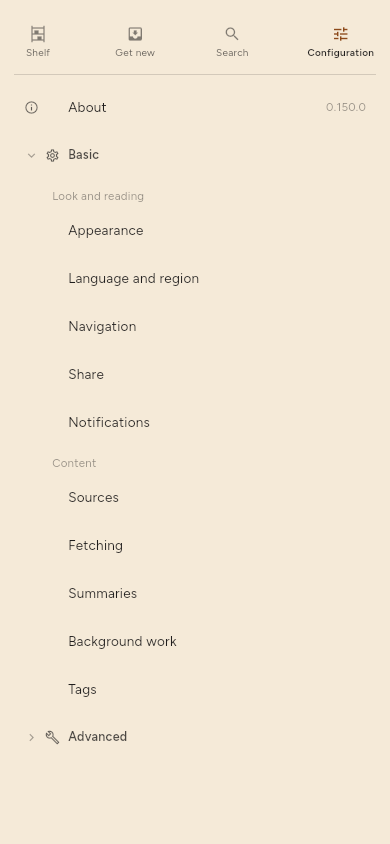
Basic
- Appearance — theme, text, the list, the article, and the bar.
- Language and region — the interface language, and how dates and times are written.
- Navigation — everything about moving, in five sections: Panes and shelf (whether the shelf is a sidebar or hidden, and where the article sits against the list), Keyboard (the shortcut list), Gestures (swipes and pulls on the list and in an article), Scrolling and Mark as read. Scrolling: Configuration › Basic › Navigation › Scrolling › Scroll by sets how many lines
↓,↑and the mouse wheel move an article, and Configuration › Basic › Navigation › Scrolling › Smooth scrolling sets whether they glide or jump, and Configuration › Basic › Navigation › Scrolling › Slide articles in sets whether a new article slides into place. - Share — what a share sends.
- Notifications — announcements and notices. On a phone, Configuration › Basic › Notifications › Announcements › Show the unread count on the app icon puts the number of unread articles on the app icon. It is off at first, and turning it on asks for permission. The number changes when the app refreshes its counts and after each background check. On Android the number comes from a silent notification on the Unread count channel. If you turn off that channel, the icon shows no number.
- Sources — everything you follow, with the filter, the tick boxes and the bulk actions described under Managing sources, and the order the list is kept in.
- Fetching — how often to check, on which connections and on battery, and how many sources at once.
- Summaries — whether summaries are written, where, how many at a time and per check, the summary language, and suggested tags.
- Background work — what the status strip shows while the app works, and, on a phone, Configuration › Basic › Background work › With the screen off › Keep working with the screen off, which keeps checks, summaries, model downloads and sync running after the screen goes off. On iOS the system shows their progress only after you leave the app, and takes it away when you come back. On an iPhone with the model on the device, checks and sync go on while you are away; their summaries wait until you come back, unless the device lets the GPU work in the background.
- Tags — the vocabulary: every tag, to rename, merge or remove.
Configuration › Basic › Navigation › Mark as read is worth knowing about: Never means only you mark things read, Immediately means opening counts, After a few seconds means passing through does not, and When you reach the end waits for the bottom of the article. When you move on marks the article you leave, once it has been open for the number of seconds you set under After a few seconds. Under it, Configuration › Basic › Navigation › Mark as read shows five switches that say which ways of moving on count: Sliding left, Sliding right, Sliding up and Sliding down name the way your finger goes, and the keys that turn the article, j, n and Space (up) and k, p and Shift+Space (down), count as the vertical ones. Closing the article covers going back to the list and choosing another article in it. Left and right, then, are for swipes only. Sliding left and up (on to the next article) and closing are on, sliding right and down (back to the previous one) are off, so looking at an article again does not mark the one you leave. The last three modes mark an article read only once each time you open it, and a mark you make by hand, read or unread, wins until you open the article again.
Advanced
- On-device model — models on this device and finding new ones, and the processor a model runs on.
- LLM server — the address, model and key of a server that summarizes.
- Sync — sync on or off, the server address, when it runs on its own, whether this device keeps everything, another device, the recovery code, and deleting the copy on the server.
- Accounts — the sites this device is signed in to, where the build supports signing in.
- Tokens and API & MCP — in Premium only, because all three doors are: a free build has no tab and no ports rather than switches that refuse.
- Your data — export, import, backup and restore, duplicate sources, how long article text and pictures are kept, and the system backup.
- Statistics — what summarizing has used, and what the library holds. Now, at the top, shows this app's processor share and memory, the system memory, the database file and the model in use, read again every 3 seconds.
- Debug — the trace: everything that ran and everything that failed, which is the first place to look when something did not happen.
- Development — Missing details, which re-fetches metadata, a model comparison, experiments, and Erase everything.
API & MCP (Premium only)
Three doors, each with its own port, its own choice of which addresses it answers on and its own switch: the REST API a browser extension or another program puts something in through, Metrics for a monitoring system, and MCP, which a model answers on. They start on 8765 (REST API), 8766 (MCP) and 8767 (Metrics), and none of them needs another to be open.
Every door takes the named tokens from Configuration › Advanced › Tokens. The first time you open a door and no token can open it, the app makes one. A token opens only what it is ticked for, in Configuration › Advanced › Tokens › Tokens › Edit permissions. The permissions are folded by subject, and the field above them filters them by name or description. The presets fill the ticks: All except removals, Read only, Browser extension, which ticks exactly what the browser extension uses, Monitoring, which ticks only metrics, and Nothing.
The Metrics door takes only a Monitoring token: a token with the metrics permission and no other. It refuses a token with any other permission, because a monitoring system keeps its token as plain text in its configuration. A Monitoring token opens nothing at the REST API and MCP doors. If you had a Metrics token from an earlier version, it is now a token called Monitoring with the same value, so your monitoring system keeps working.
Use TLS (HTTPS), under the three doors, is off by default and switches all three to HTTPS at once. The first time, the app makes a certificate for this device, naming its host name and its addresses, and keeps the key with the other secrets. Clients must then use https:// and trust that certificate: the page shows its SHA-256 fingerprint, with a button to copy it, so a client can pin it. New certificate makes another one, and every client that pinned the old fingerprint must be given the new one. The MCP command-line wrapper picks the certificate up by itself; restart its client after a new certificate.
The terminal reader is not one of these. It opens the library file directly, needs no door open and no port, and is free.
Your data
Export and Import, a section each: OPML for sources, and your library in full. Backup and restore copies the whole library to one file and back; Configuration › Advanced › Your data › Backup and restore › Include sign-ins and tokens, off each time, adds every account's sign-in and every token to it, encrypted with a passphrase you type twice. That file and its passphrase together sign in to those accounts. A restore asks for the passphrase; a wrong or forgotten one still restores the library, and leaves this device's sign-ins as they were. Also Configuration › Advanced › Your data › Duplicate sources, which looks for the same channel followed under two addresses and offers to merge the pairs it finds. Configuration › Advanced › Your data › Storage time › Delete only read articles, off at first, makes the Articles limit count from the day you read an article, and it then never deletes an unread article because of its age.
About
Version, the open-source licences, the privacy policy, the end-user licence and the terms. On Linux, Check for updates. The privacy policy, the licence and the terms open inside the app, from the copy the app was built with, so they work offline. Open on the site on that page shows the newest version in your browser (Configuration › About › Privacy policy, and the same for the other two).