← Managing sources · Contents · Keyboard →
Sync
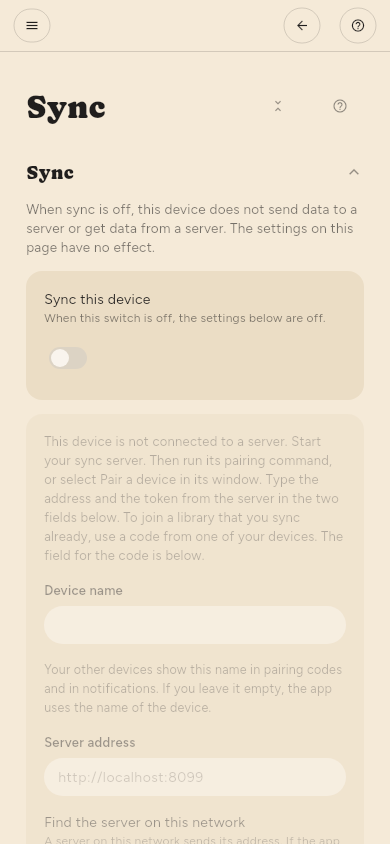
Configuration › Advanced › Sync › Sync. Your devices keep each other in step: what you have read, what you saved, your highlights, and the articles themselves.
It is end-to-end encrypted: the server stores ciphertext and cannot read your library. There is no hosted service to sign up for — the address you set is a server you run.
When it runs
Configuration › Advanced › Sync › When to sync › How often offers a clock — every 15 minutes through to once a day — and moments instead:
- After a check — as soon as every source has been fetched, before anything is summarized. On a local model summarizing can take twenty minutes, and the articles are ready long before that.
- After summarizing — once the whole check is finished, so one sync carries the articles and their summaries together.
- After each change — shortly after you read, save or tag something.
While the app is on screen, Configuration › Advanced › Sync › When to sync › Sync each change while the app is open sends each change within a few seconds, whatever How often says; the clock then only applies in the background. It is on unless you turn it off, and Only when I ask still means only when you ask. Coming back to the app syncs once, on every schedule but Only when I ask. Changes from your other devices arrive within seconds while the app is open, whatever the schedule.
Whichever you pick, a metered connection or a battery rule still holds it back.
Get the server
The server is a separate program, free and open source. Download it from its releases page:
- SummaReader Sync, an AppImage for Linux: a window that starts the server and shows its devices.
- The headless bundles for Linux, macOS and Windows: the server alone, for a machine that stays on.
Run it on a computer that all your devices can reach, for example one at home that is always on. When it starts, it prints its address and its certificate fingerprint. Its README also covers Docker and a systemd service.
Connecting the first device
- On the server, run
summareader-sync first-device "My library" "Desktop", or press Pair a device in the SummaReader Sync window. It shows a device token once, and cannot show it again. - Open Configuration › Advanced › Sync › Sync and turn on Keep my devices in step.
- Fill in Server address, which starts with
https://. For a server on the same network, press Find the server on this network instead. - Paste the token into Device token.
- On first contact, the app shows the server's certificate fingerprint. Compare it with the one the server printed, and accept it only if they are the same.
Pairing a second device
- Connect the first device, as above.
- In Configuration › Advanced › Sync › Another device, Make a code shows a QR code and the same code as text.
- On the second device, scan it or paste it below Join with a code, then press Use the code. A phone, a Mac and a Linux desktop with a webcam can scan the code; on Windows, paste it.
The first sync to a fresh server asks before uploading — a server that has never seen your library is a decision, not a detail.
The recovery code
Made once, in Configuration › Advanced › Sync › Recovery key. It is the only way back into your library if you lose every paired device. Nobody can reissue it.
Article text
Read state, highlights and the articles themselves travel automatically. Their words and pictures are the bulk, and by default they stay behind a pointer: sync tells this device that a copy exists, and it is fetched when you open the article.
Configuration › Advanced › Sync › Sync › Keep everything on this device changes that — each article's words and pictures are downloaded as they arrive. It is a setting per device rather than per library: worth it on a machine you read on offline, a lot of data on a phone for articles you will not open. Each sync spends at most the time set in Maximum time on this, words first and then pictures. While the app is open, the download then continues in the background until nothing is left, so an article you open later already has its picture. It stops when the app goes to the background and continues at the next sync.